Telemetry auto-sync

Telemetry auto-sync for iRacing and Le Mans Ultimate

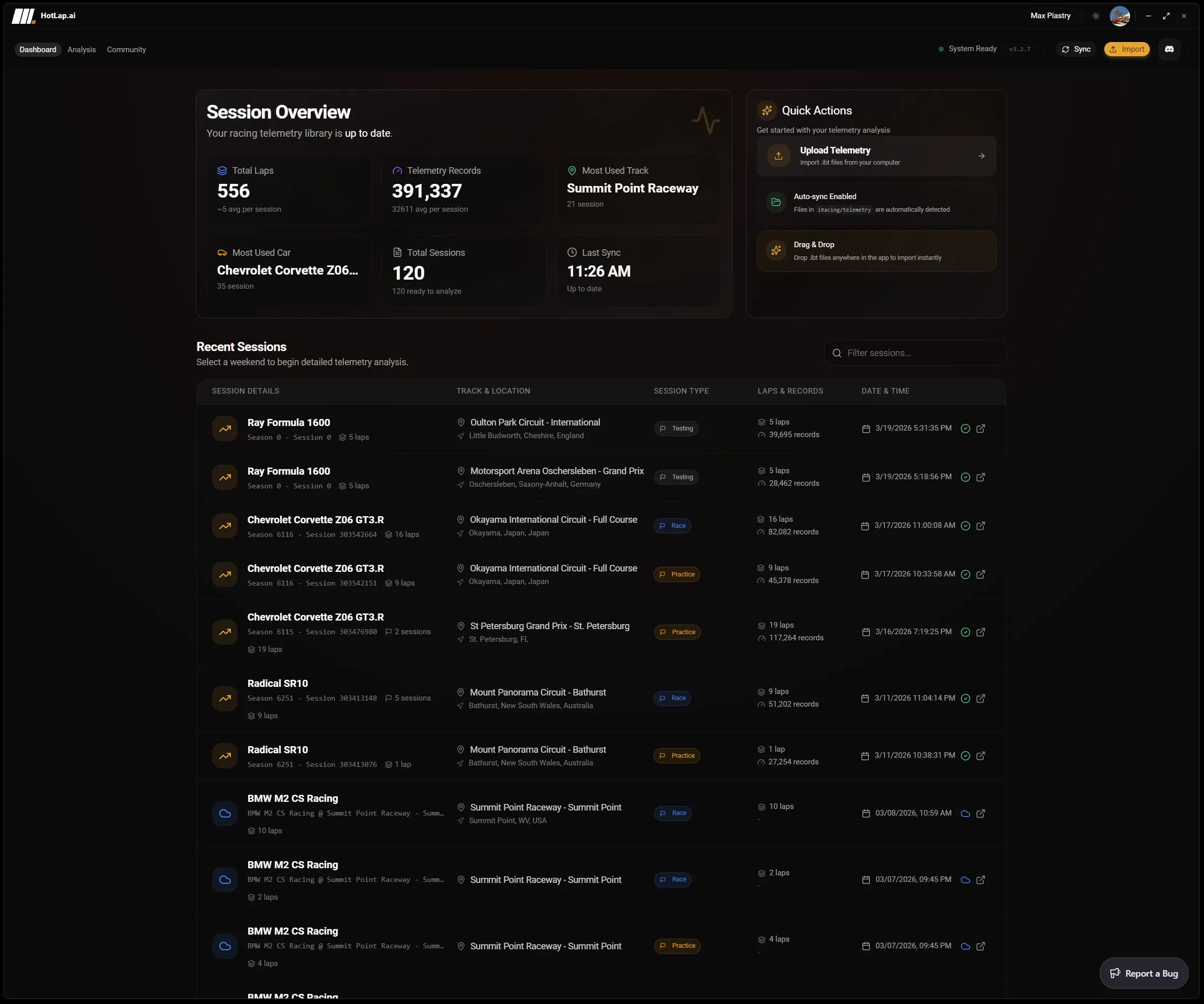
Hotlap.ai turns the messy part of telemetry review into a repeatable workflow. The desktop app picks up new sessions from iRacing and Le Mans Ultimate, groups them by car and track, detects duplicates, and queues uploads so your laps are ready for analysis without manual file sorting.

Free to startDesktop and web workflows
iRacing + Le Mans UltimateNative telemetry from both sims
Driver-firstReview what changes the lap
Hotlap.ai dashboard for organizing synced iRacing telemetry sessions before lap analysis
1

Local telemetry discovery

For iRacing, the desktop app watches the standard Documents/iRacing/telemetry location. For Le Mans Ultimate, it reads the sessions LMU's built-in telemetry recorder saves to its UserData/Telemetry folder. Session metadata helps organize laps by track, car, session, lap, and available telemetry channels.

2

Duplicate-safe syncing

Hotlap.ai hashes telemetry files before upload so repeat files can be detected instead of processed again. Sync jobs move through clear phases such as reading, hashing, checking, parsing, uploading, and complete.

3

Recovery for interrupted uploads

Telemetry files can be large, so the sync flow is designed around a one-at-a-time queue and recovery states. If a local sync fails, the app can surface the failed item and continue from a controlled workflow instead of leaving the library in an unknown state.

How telemetry gets into Hotlap.ai

A focused path from session data to the next change you can test on track.

  1. Step 1

    Record telemetry in your sim

    Turn recording on once: Alt+L or irsdkAutoLogDisk=1 in app.ini for iRacing, or Automatic Telemetry Recording under Settings → Gameplay in Le Mans Ultimate. Hotlap.ai does not change how you drive the session; it starts from the telemetry your sim already writes locally.

  2. Step 2

    Let the desktop app find it

    The app scans the telemetry folder and reads enough metadata to group files into useful sessions without forcing manual folder cleanup.

  3. Step 3

    Avoid duplicate work

    File hashing and server-side checks prevent repeated uploads from turning into duplicate analysis entries.

  4. Step 4

    Send clean data to analysis

    Once synced, laps become available for comparison, AI findings, track maps, community references, and browser review.

Best used before analysis starts

This page should not read like another lap-analysis page. It is the library and ingestion workflow: how telemetry gets from the simulator into a clean, searchable Hotlap.ai session list.

The user problem is not interpreting brake traces. The user problem is avoiding manual file handling, duplicate uploads, failed sync states, and the friction that prevents drivers from reviewing laps at all.

Questions drivers ask

Where does Hotlap.ai look for telemetry files?

For iRacing, the desktop app uses the local telemetry folder, usually Documents/iRacing/telemetry. For Le Mans Ultimate, it uses the UserData/Telemetry folder where LMU's built-in recorder saves each session. Discovered sessions are organized for review automatically.

How do I get Le Mans Ultimate telemetry into Hotlap.ai?

In Le Mans Ultimate, open Settings → Gameplay and enable Automatic Telemetry Recording. After that, the Hotlap.ai desktop app picks up new LMU sessions and syncs them in the background, ready for the same lap analysis, comparisons, and AI coaching as iRacing. LMU support is new; setups sync is not available for LMU yet.

Can I still import telemetry manually?

Yes. Auto-sync is designed to reduce file handling, but Hotlap.ai also supports manual telemetry import for drivers who want direct control over a specific file.

Find your perfect lap.

Use Hotlap.ai to compare the lap, understand the inputs, and leave review with one clear thing to try next.

Sync your telemetry