iRacing telemetry analysis

iRacing telemetry analysis that explains where lap time is lost

Hotlap.ai helps iRacing drivers move from raw .ibt telemetry traces to specific driving changes. Compare laps side-by-side, inspect braking and throttle inputs, review tire data, use 3D track maps, and use AI findings to understand which corners are costing the most time.

Free to startDesktop and web workflows
Built for iRacingNative .ibt telemetry context
Driver-firstReview what changes the lap
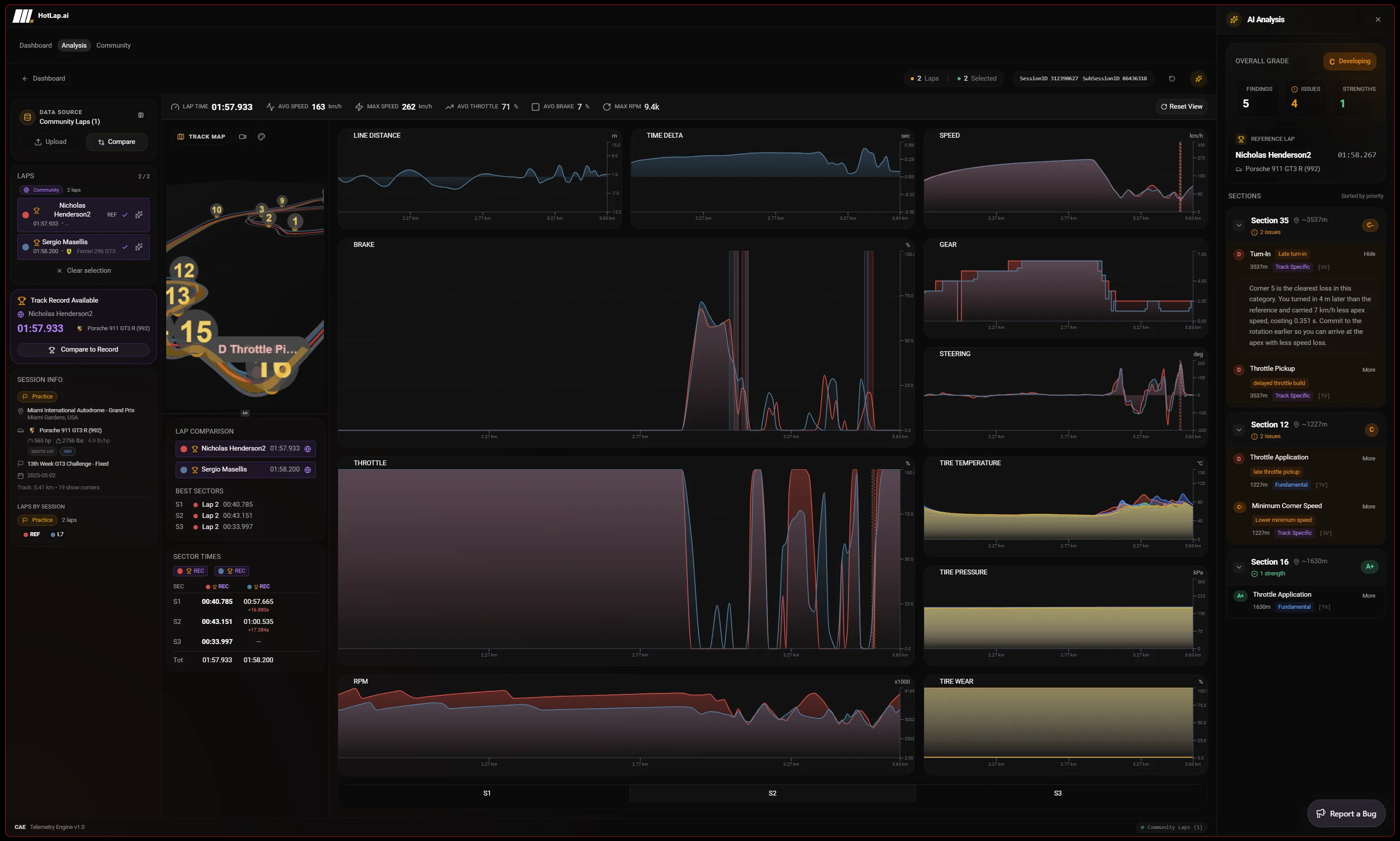
Hotlap.ai iRacing telemetry analysis workspace with lap comparison, 3D track map, charts, sectors, and AI findings
1

Built around the driver, not just the graph

Traditional telemetry tools can show every channel, but the hard part is knowing what matters first. Hotlap.ai keeps raw traces visible while summarizing the biggest losses by corner, sector, input type, and priority so practice time is focused.

2

Compare against personal bests and faster references

Overlay your lap against a best lap, teammate, live lap, or community benchmark. Distance-aligned charts make it clear whether the gap came from braking point, brake release, throttle pickup, steering angle, gear choice, minimum speed, or exit speed.

3

Use AI coaching without losing the data

AI analysis explains likely causes in plain language, but the underlying telemetry remains available for verification. Grades, section findings, and chart markers make Hotlap.ai useful for new drivers and serious sim racers who still want to inspect the source data.

From raw lap to practice plan

A focused path from session data to the next change you can test on track.

  1. Step 1

    Import the session

    Start from an iRacing .ibt file, synced desktop session, or uploaded lap. Hotlap.ai extracts the channels needed for speed, brake, throttle, steering, gear, RPM, tires, GPS, sectors, and lap metadata.

  2. Step 2

    Inspect the loss

    Use the delta trace and 3D map to find where the gap opens, then inspect the matching driver input and tire channels at that exact distance on the lap.

  3. Step 3

    Compare a reference

    Add a personal best or community reference lap to see whether the time came from entry speed, brake release, throttle pickup, gear choice, or exit speed.

  4. Step 4

    Turn it into practice

    Use AI findings as a shortlist of the corners and inputs worth testing next, while keeping the raw telemetry visible for confirmation.

Best used after a practice run

This page is the main lap-analysis workflow: it is for drivers who already have telemetry and need to understand where the time went. Start broad with lap delta and sector loss, then move into channel-level detail only where the lap actually lost time.

The goal is not to inspect every graph. The goal is to leave the review knowing which corner phase to change next: brake marker, brake release, rotation, apex speed, throttle pickup, or exit line.

Questions drivers ask

What iRacing telemetry does Hotlap.ai analyze?

Hotlap.ai analyzes .ibt telemetry from iRacing, including speed, brake, throttle, steering, gear, RPM, GPS position, sector data, tire temperature, tire pressure, tire wear, ABS, and related lap metadata when those channels are available.

Can I compare my lap against a faster driver?

Yes. Hotlap.ai supports comparisons against personal best laps, cloud laps, community reference laps, and live laps, with telemetry aligned by distance so differences appear at the same point on the track.

Find your perfect lap.

Use Hotlap.ai to compare the lap, understand the inputs, and leave review with one clear thing to try next.

Start analyzing iRacing telemetry